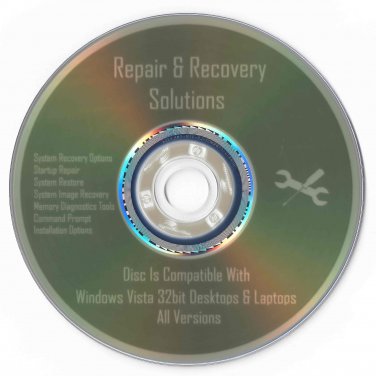
Recovery Solutions Repair & Install Utilities for Vista 32 bit All Versions
If you have bought a new Desktop or Laptop PC from Dell, Acer, ASUS, HP, Toshiba, IBM, or pretty much any Computer Manufacture your computer most likely did not come with Repair Utilities. This DVD can be used to Repair and Install All versions (Business, Business N, Home Basic, Home Basic N, Home Premium, Starter, and Ultimate) of Windows Vista 32 bit.
This Disc Contains
Installation Options
Startup Repair which Automatically fixes problems that are preventing Windows from starting or booting
System Restore which Restores Windows to an earlier point in time via restore points
System Image Recovery which Recovers your computer using a system image created on your system earlier
Windows Memory Diagnostic Tool which Checks your Computer for memory hardware errors
Command Prompt which Opens a command prompt for advanced recovery Options
Fix Problems Like:
An error occurred while attempting to read the boot configuration data
Automatic restarts when booting into Windows
BOOTMGR is compressed
BOOTMGR is missing
Blue screens of death at startup
Corrupted user profiles
NTDETECT failed
NTLDR is compressed
NTLDR is missing
Reboot loops (Windows never starts)
The selected entry could not be loaded because the application is missing or corrupt
Windowssystem32winload.exe missing or corrupt
Or just start from Scratch with a Clean Install
This disc will come with Printed Instructions for use!
Unfortunately there are only two guarantees in life Death & Taxes so I CANNOT GUARANTEE this Disk will work for 100% of your problems, but it sure will give you a running start.
Disc is Bootable in the BIOS
Disc is Professionally Labeled & Burned
Disc Comes Shipped in Paper CD Sleeve and Cardboard Mailer
Here's How to Boot from BIOS:
1. When Your computer first starts watch closely to see what key you must hit to enter the BIOS setup, usually it's either F2 or Delete.
2. Change the boot order in BIOS so the CD, DVD, or BD drive is listed first. Some computers are already configured this way but many are not.
If the optical drive(cd-drive) is not first in the boot order, your PC will start "normally" (i.e. boot from your hard drive) without even looking at what might be in your disc drive.
3. Insert your bootable CD, DVD, or BD in your disc drive.
4. Restart your computer.
5. Watch for a Press any key to boot from CD or DVD... message.
When booting to a Windows setup disc, and some other bootable discs as well, you may be prompted with a message to press a key to boot to the disc. To boot from the disc, you'll need to press any key on your keyboard (like the space bar) within the few seconds that the message is on the screen.
If you do nothing, your computer will check for boot information on the next boot device in the list in BIOS (see Step 1) which will probably be your hard drive.
Some bootable discs do not prompt for a key press and will start immediately.